

Before you start
- •Make sure your device is eSIM compatible (check our compatible devices page)
- •You need a Wi-Fi or existing data connection for the initial setup
- •Have your QR code ready (from your email or your Telcomia account)
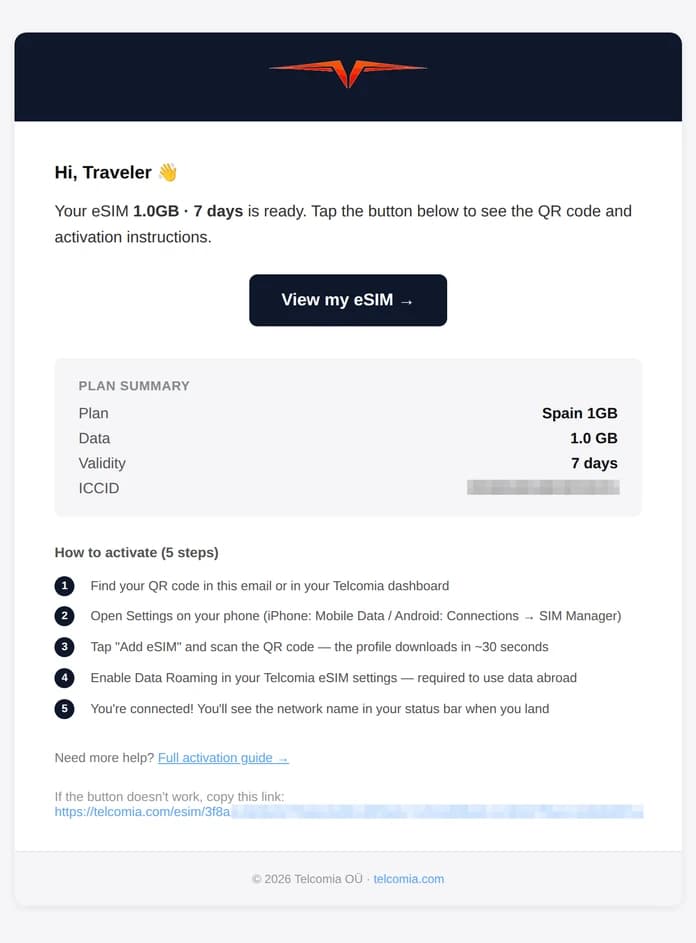
5 simple steps to get connected
Works the same on iPhone and Android
Find your QR code
Open your Telcomia confirmation email or visit your dashboard. The QR code is ready to scan.
Open Settings
On iPhone: Settings → Mobile Data. On Android: Settings → Connections → SIM Manager.
Install your eSIM
Tap "Add eSIM", then scan the QR code. Wait ~30 seconds while the profile downloads.
Enable Data Roaming
In your Telcomia eSIM settings, enable Data Roaming. Required to use data abroad.
You're connected!
Your eSIM is active. You'll see the network name in your status bar when you land.
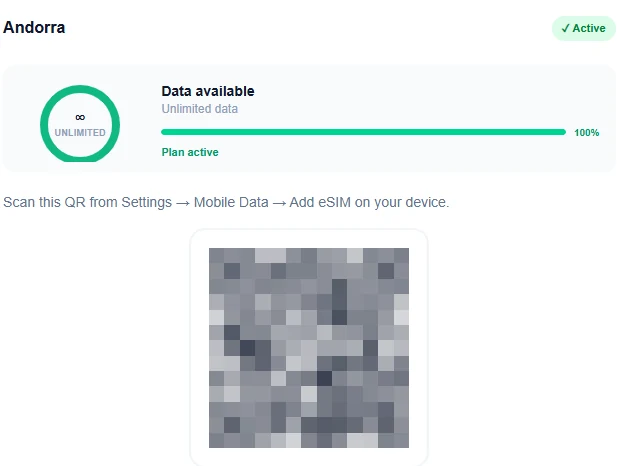
Detailed steps by device
iPhone (iOS 13+)
- 1
Open Settings — Go to Settings > Cellular (or Mobile Data)
- 2
Add eSIM — Tap "Add eSIM" or "Add Cellular Plan"
- 3
Scan QR code — Select "Use QR Code" and point your camera at the Telcomia QR code
- 4
Confirm installation — Tap Continue and wait ~30 seconds for the profile to download
- 5
Label your plan — Choose a label like "Travel" to distinguish it from your main line
- 6
Set data line — Go to Settings > Cellular > Cellular Data and select your Telcomia eSIM
- 7
Enable Data Roaming — In your Telcomia plan settings, enable Data Roaming. Required for the eSIM to work abroad
- 8
You're connected! — Your eSIM is now active. You'll see the network name in your status bar at your destination